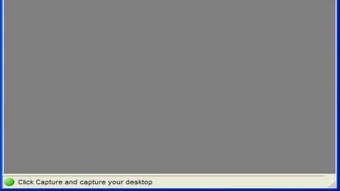


Download LS Screen Capture – Free, Secure Screen Capture Tool for Windows
Why LS Screen Capture Stands Out Among Free Screen Capture Tools
In today’s digital world, capturing screenshots quickly and accurately is essential for students, professionals, and content creators alike. Among the many screen capture tools available, LS Screen Capture by Linos Software stands out as a reliable, lightweight, and entirely free solution for Windows users. Unlike many competitors that bombard users with ads, in-app purchases, or bloated features, LS Screen Capture focuses on simplicity and performance. With just a few clicks, users can capture their entire desktop, a specific window, or a custom-defined region—ideal for creating tutorials, documenting software bugs, or saving important on-screen information.
What makes LS Screen Capture particularly appealing is its minimalistic design and instant accessibility. The application launches without any setup hassles and integrates seamlessly into your workflow. Whether you're preparing a presentation, troubleshooting a technical issue, or sharing a quick update, this tool ensures you never miss a moment.
It’s especially useful for those who value speed and efficiency without sacrificing functionality. The software runs quietly in the background, consuming minimal system resources, which means it won’t slow down your computer even during extended use. Additionally, it supports keyboard shortcuts for rapid capture, allowing power users to work faster.
With no registration required and a clean interface, LS Screen Capture delivers a hassle-free experience that’s perfect for both beginners and advanced users.
For anyone searching for a trustworthy, free screen capture software for Windows, LS Screen Capture is a top contender. Its straightforward approach to screenshot capture, combined with reliable performance, makes it a must-have utility in your digital toolkit. Whether you're working from home, teaching online, or just need to save a quick note from your screen, this tool gets the job done—fast, secure, and without distractions.
Key Features and How They Enhance Your Workflow
LS Screen Capture is packed with intuitive features designed to streamline the screenshot process. One of its standout capabilities is the ability to capture entire desktops, individual windows, or custom screen regions with precision. The selection tool allows you to drag and define any area, making it easy to isolate specific content without capturing unnecessary clutter. This is especially useful when documenting UI elements, sharing error messages, or creating step-by-step guides.
Another major advantage is the built-in keyboard shortcut support. You can assign custom hotkeys to trigger captures instantly—no need to open the app or navigate menus. This feature is a game-changer for productivity, enabling users to capture screenshots mid-task without breaking their flow. Additionally, the software automatically saves captures in a designated folder, and you can choose the file format (PNG, JPG, BMP) to suit your needs. The option to copy the screenshot directly to the clipboard is also available, making it easy to paste into emails, documents, or design tools.
LS Screen Capture also includes a simple image editor that allows you to annotate, crop, or blur sensitive content before saving or sharing. This is particularly helpful when sharing screenshots with clients or colleagues, as it ensures privacy and clarity. The tool supports batch capture for repetitive tasks, and the interface is fully customizable—users can adjust transparency, positioning, and theme to match their preferences. All these features are available in the free version, which is rare among screen capture apps. No watermarks, no time limits, and no hidden costs—just pure, functional software.
Installation and Usage: Getting Started in Minutes
Installing LS Screen Capture is a breeze, thanks to its lightweight installer and straightforward setup process. Simply visit the official Linos Software website, download the latest version (compatible with Windows 7 and later), and run the installer. The setup wizard guides you through the process in seconds—no complicated configurations or unnecessary options. Once installed, the application launches automatically, and you’re ready to capture your first screenshot.
To use LS Screen Capture, simply click the icon in your system tray or press your assigned hotkey. A crosshair cursor appears, allowing you to select the area you want to capture. You can choose from three modes: full screen, active window, or custom region.
After capturing, a preview window opens where you can edit, save, or copy the image. The software automatically suggests a filename and saves it to your default Pictures folder unless you specify another location. You can also configure the default save path and file format in the settings menu.
For advanced users, the app offers a command-line interface for automation. This is perfect for developers or IT professionals who want to integrate screen capture into scripts or batch processes. The settings panel is easy to navigate and includes options for hotkey customization, auto-save, clipboard copy, and editor preferences. There’s no need to dig through complex menus—everything is logically organized and accessible within seconds. Whether you’re a novice or a power user, LS Screen Capture ensures a smooth and intuitive experience from first use to daily routine.
Compatibility and System Requirements
LS Screen Capture is designed specifically for Windows operating systems, supporting Windows 7, 8, 8.1, and 10 (both 32-bit and 64-bit versions). It’s compatible with modern hardware and runs efficiently on low-end systems, making it accessible to a wide range of users. The software does not require administrator rights to install or run, which is ideal for corporate environments or shared computers where user permissions are restricted.
Due to its lightweight nature, LS Screen Capture uses minimal RAM and CPU resources—typically less than 10 MB of memory during idle use. This ensures it won’t interfere with other applications, even when running in the background. It’s also fully compatible with multi-monitor setups, allowing you to capture content across multiple screens or focus on a single display. The tool works seamlessly with touchscreens and styluses, making it a solid choice for tablet users running Windows.
While LS Screen Capture is currently only available for Windows, its simplicity and performance make it a strong alternative to cross-platform tools like LightShot or Screenpresso. If you’re a Mac or Linux user, you may need to explore other options, but for Windows users, this app delivers excellent value. Regular updates are released by Linos Software to fix bugs, improve stability, and enhance compatibility with new Windows updates—ensuring long-term reliability.
Pros and Cons: Is LS Screen Capture Right for You?
- Pros:
- Completely free with no ads or in-app purchases
- Lightweight and fast, low system resource usage
- Simple, intuitive interface suitable for all skill levels
- Supports full screen, window, and custom region captures
- Customizable keyboard shortcuts for rapid access
- Basic image editing tools for annotations and cropping
- Automatic save to user-defined folders with format options
- Runs in the background without disrupting workflow
- Cons:
- Only available for Windows (no Mac or Linux support)
- Lacks advanced recording features (no video capture)
- No built-in cloud sharing or direct upload options
- Basic editor—no advanced filters or effects
- Interface is minimal; some users may miss a more modern look
Frequently Asked Questions (FAQ)
Is LS Screen Capture really free to download and use?
Yes, LS Screen Capture is completely free to download and use. There are no hidden fees, trial periods, or premium features locked behind a paywall. Linos Software offers the full functionality of the app at no cost, making it one of the most transparent screen capture tools available.
Can I use LS Screen Capture on Windows 11?
Absolutely. LS Screen Capture is fully compatible with Windows 11, as well as Windows 10, 8, and 7. The software is regularly updated to maintain compatibility with the latest Windows versions.
Does LS Screen Capture support multiple monitors?
Yes, it supports multi-monitor setups. You can capture the entire desktop across all monitors or select a specific screen for capture.
Can I edit screenshots after capturing them?
Yes, LS Screen Capture includes a basic built-in editor that allows you to crop, annotate, and blur sensitive information before saving or sharing.
Is there a video recording feature?
No, LS Screen Capture is designed exclusively for screenshots. It does not support video recording. For screen recording, consider tools like oCam or Free Screen Recorder.
Final Verdict: A Must-Have Free Screen Capture App for Windows
If you're looking for a free, secure, and efficient screen capture tool for Windows, LS Screen Capture delivers exceptional value. Its simplicity, speed, and reliability make it a top choice for everyday users, educators, and professionals who need to capture screenshots without complications. While it lacks advanced features like video recording or cloud sharing, it excels in its core purpose: capturing high-quality screenshots with minimal effort.
With no ads, no bloat, and no cost, it’s a refreshing alternative to feature-heavy competitors. Whether you're creating tutorials, documenting software issues, or just saving important information, LS Screen Capture is a dependable companion. Download it today and experience the joy of effortless screen capture.
Download LS Screen Capture now and take control of your digital workflow—fast, free, and secure.







